![triaster-logo-hex.svg]](https://knowledge.triaster.co.uk/hubfs/TRIASTER/img/triaster-logo-hex.svg)
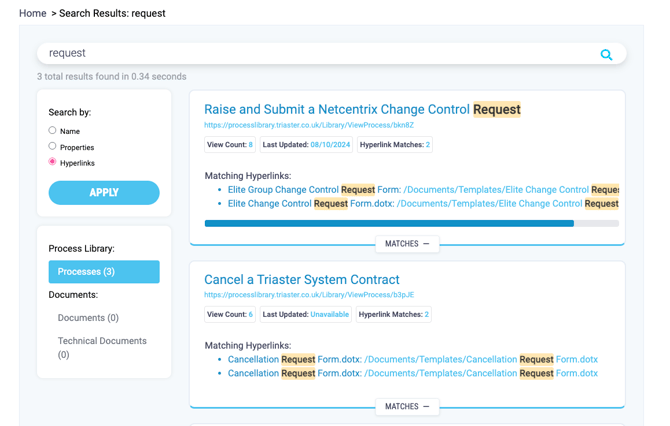
To search from the Library Homepage type your search term into the search bar and click the search icon.

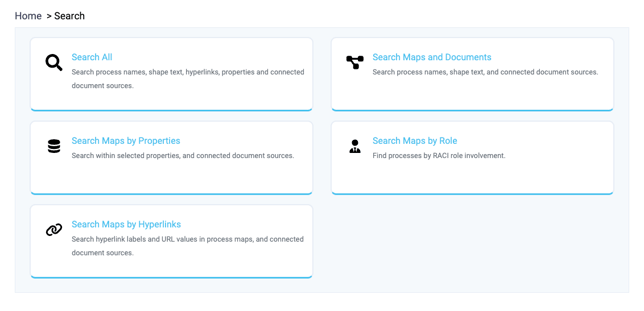
Alternatively, click Search in the top left of the screen in the Library section of the Process Library to go to the Search page, from here you can:
- Search All
- Search Maps and Documents
- Search Maps by Properties
- Search Maps by Role
- Search Maps by Hyperlinks
- To search the Process Library as a whole click Search All then type your search term into the search bar, you will be taken to the Search Results page which will display all the relevant content available in the Process Library.
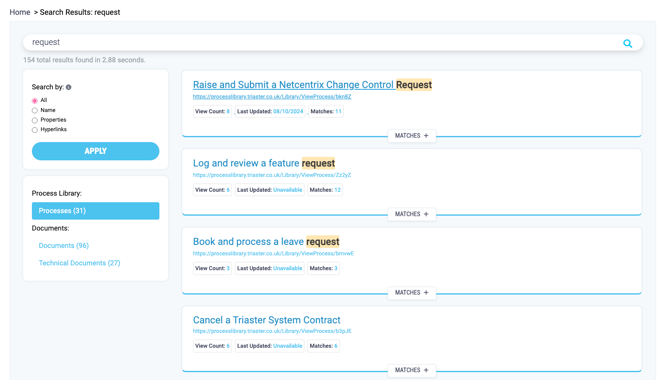
- Click on the name of the Process Map to view it in the Library or click Matches to see the shape or hyperlink matches.
This can also be achieved using the Quick Search bar in the top right hand corner.
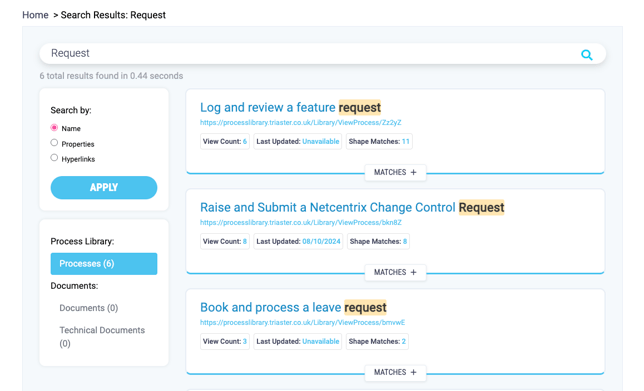
- To search process maps click Search Maps and Documents then type your search term into the search bar, you will be taken to the Search Results page which will display all the relevant Process Maps available in the Process Library.
- Click on the name of the Process Map to view it in the Library or click Matches to see the shape or hyperlink matches.
- To view the documents and technical documents held in Sharepoint, click on the Documents or Technical Documents buttons in the Documents section of the search.
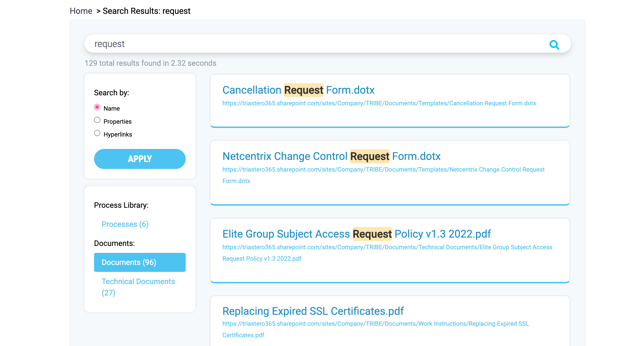
- To access the document or technical document select the document you would like to view from the list. This will open the document in Sharepoint.
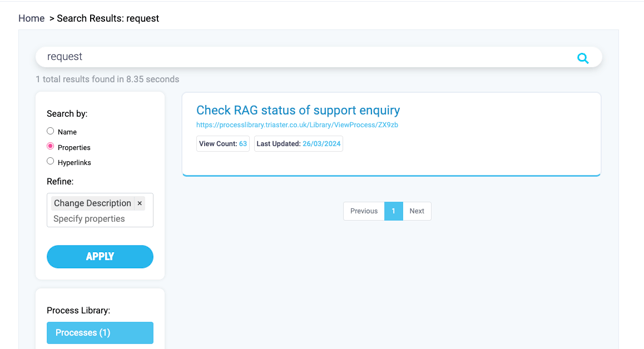
- Search by Properties by clicking on the Search by Property button in the search screen or selecting the Properties option in the 'Search by' section and choosing the property you would like to search on from the dropdown.
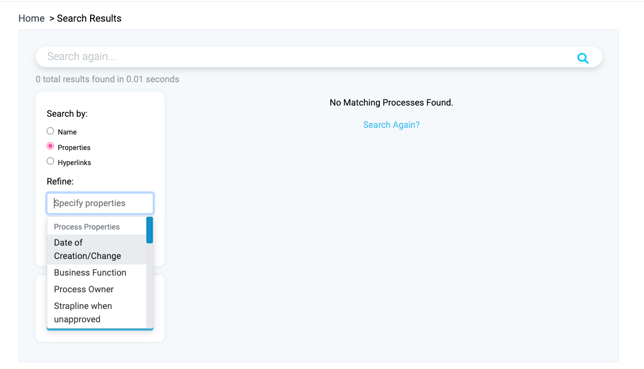
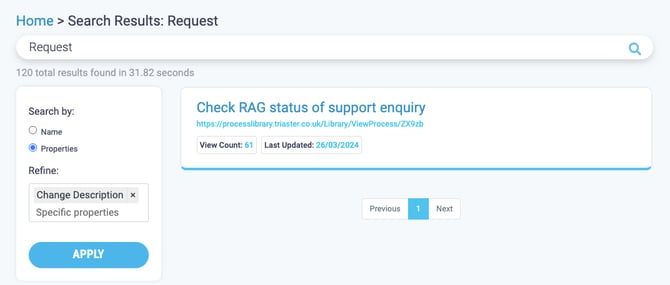
- Select the property and type the search term into the search bar and click Apply to see the results.
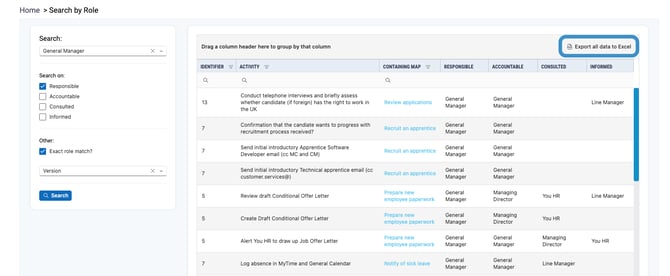
- Search by Role by click Search Maps by Role on the search screen and using the Search dropdown to choose the Role you would like to search on. You can leave this blank to show all roles that hold a RACI property.
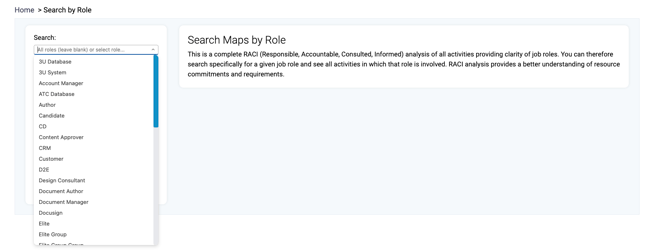
The roles dropdown is populated by the answer set you populate your RACI properties with.
- Use the check boxes to choose which RACI properties you would like to search on: Responsible, Accountable. Consulted or Informed.

- The search will sometimes show partial matches, for example 'Manager' instead of 'General Manager', if you would like to only show exact matched click the Exact role match checkbox.
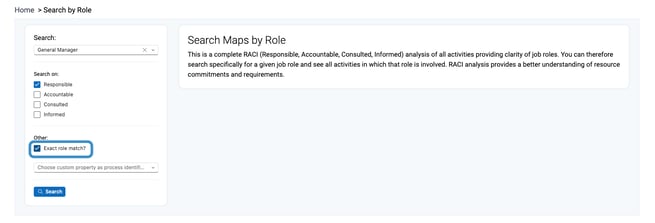
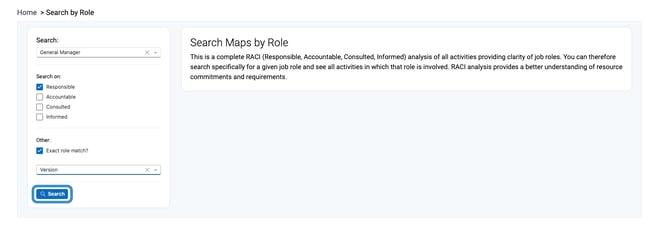
- To select a custom property as a process identifier choose the property you would like to be used from the dropdown. If you don't choose a property, this column will contain the process map's unique identifier.
.png?width=670&height=228&name=search%20by%20role%20-%20role%20match%20%20(1).png)
- Click search.
- The search results will always display all four roles - where they are populated - so you get the entire picture.
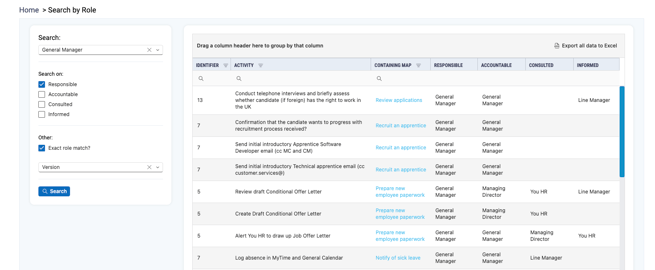
- Click the Export all data to Excel button to export this information to Excel.
- Search by Hyperlinks by clicking on the Search by Hyperlinks button in the search screen or selecting theHyperlinks option in the 'Search by' section.
- Type the search term into the search bar and click Apply to see the results, the hyperlinks will be displayed under the name of the Process Map they are attached to.