Lock draft for approval
- Once you have completed your Process Map you must lock the map for approval so an Admin can approve the map and it can become a Master Process. You must also select a reviewer who will review the Process Map after a set period of time has elapsed.
A Master Process is the current approved Process Map for a process and cannot be edited. Only Master Processes can be displayed in the Library Homepage.
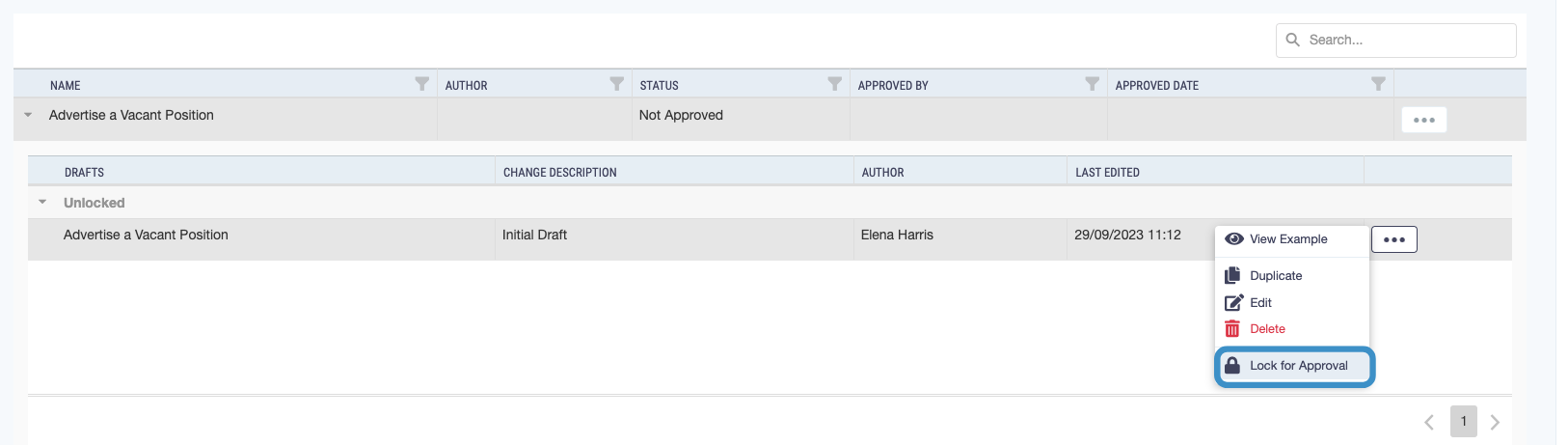
- To lock a draft for approval navigate to the Process Maps list and find your map in the list - you can use the search field in the Process Maps list if you have multiple maps.
- Click on the Arrow next to the name of the Map you want to lock for approval, a dropdown will appear with all the drafts associated with this Process Map

You can only lock a map for approval if you are the Author.
You can only have one draft locked for approval with the same name.
- Click on the button next to the draft you want to lock for approval and select Lock for Approval from the dropdown list that appears.
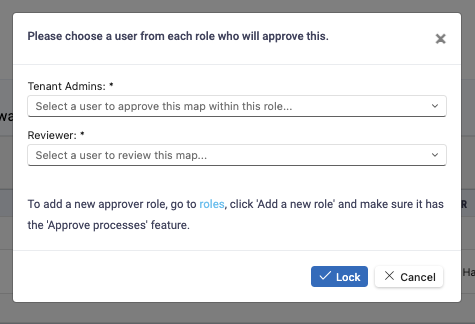
- A pop-up asks you to select approvers and a reviewer. Choose from the lists available for your library. Your administrator configures approval roles; some libraries also ask you to choose job functions.
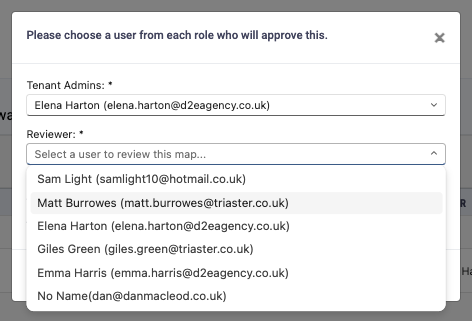
- Once you have selected your approver and reviewer click Lock.
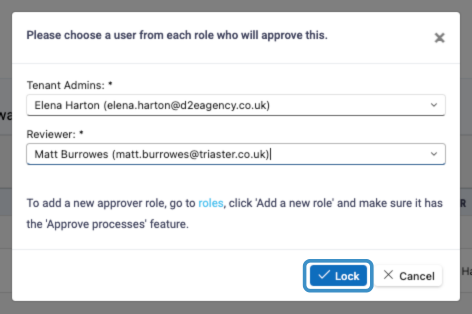
- The page will refresh and its status will be updated to 'Awaiting Approval', you will no longer be able to edit it.